
Appearance
Claude Code 配置指南

以下配置以默认端点 iina.ai 为例,如需使用国内加速端点,请将 iina.ai 替换为 acc.iina.ai。
安装 Claude Code Cli
shell
# 安装
curl -fsSL https://claude.ai/install.sh | bash

# 更新
claude update
shell
# 安装
brew install --cask claude-code@latest

# 更新
brew upgrade --cask claude-code@latest
shell
# 安装
irm https://claude.ai/install.ps1 | iex

# 更新
claude update
配置 API 密钥
获取 API 密钥: 登录控制台新建令牌,建议留空
模型限制列表以支持所有模型。修改配置:
json{ "env": { "ANTHROPIC_AUTH_TOKEN": "<YOUR_API_KEY>", "ANTHROPIC_BASE_URL": "https://iina.ai", "CLAUDE_CODE_DISABLE_NONESSENTIAL_TRAFFIC": "1", "CLAUDE_CODE_DISABLE_TERMINAL_TITLE": "1", "CLAUDE_CODE_NO_FLICKER": "1", "CLAUDE_CODE_ATTRIBUTION_HEADER": "0" }, "attribution": { "commit": "", "pr": "" }, "showThinkingSummaries": true, "model": "opus[1m]", "effortLevel": "xhigh" }json{ "primaryApiKey": "iina" }
使用 Claude Code
配置完成后,可以通过以下命令使用 Claude Code:
shell
# 交互式对话
claude

# 检查更新
claude update

# 安装 context7 mcp (需单独注册 context7 账户并获取 API 密钥)
claude mcp add --scope user --transport http context7 https://mcp.context7.com/mcp --header "CONTEXT7_API_KEY: YOUR_CONTEXT7_API_KEY"
与 IDE 集成
推荐安装 IDE 插件以提升使用体验:
- Visual Studio Code:安装 Claude Code for VS Code 插件。
- JetBrains 系列:安装 Claude Code [Beta] 插件。
更多用法请参考 Claude Code 文档。
在 VSCode Sidebar 中使用 Claude Code
前提条件:
- Visual Studio Code 1.97+
- Claude Code v2.0.56+
- VSCode Extension v2.0.56+
设置步骤:
- 打开 VSCode 设置,搜索
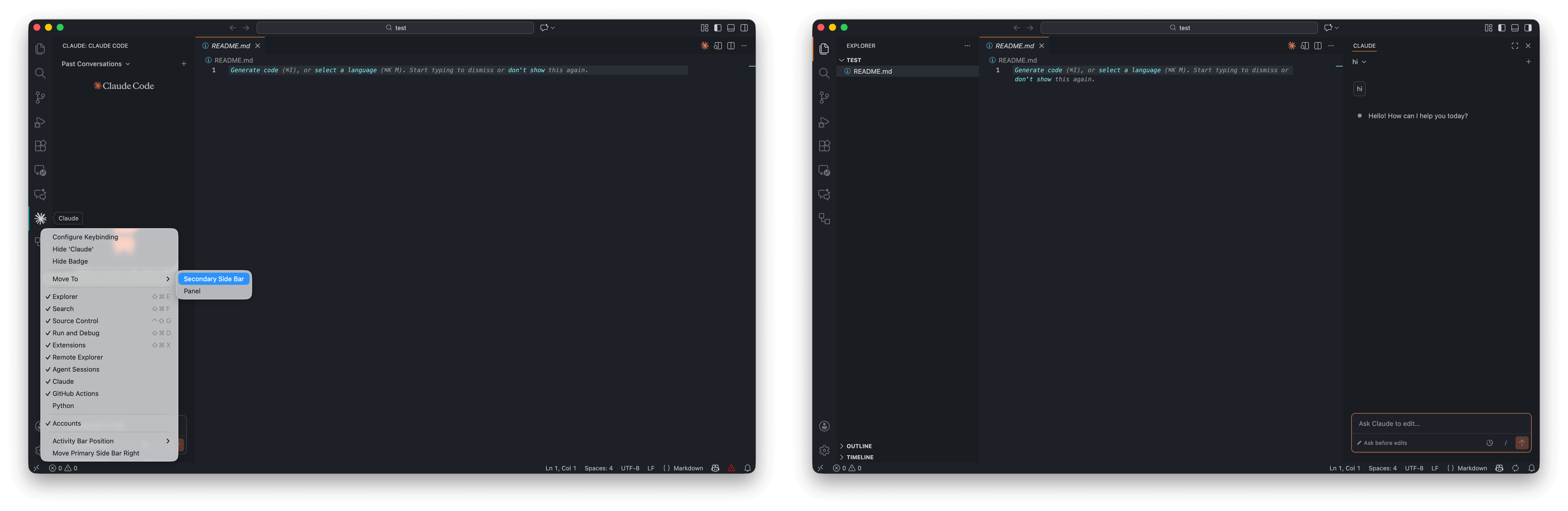
@ext:Anthropic.claude-code,将Claude Code: Preferred Location设置为sidebar。 - 点击右上角 Claude 图标,即可在侧边栏使用 Claude Code,默认为左侧边栏(Primary Side Bar),使用右键点击 Claude 图标选择移动到右侧边栏(Secondary Side Bar)。
提示缓存
Claude Code 将某些输入内容写入缓存时,IINA 会对写入和读取缓存的内容分别计费,阅读文档理解提示缓存。
可通过添加以下环境变量禁用提示缓存:
json
{
  "env": {
    "DISABLE_PROMPT_CACHING": "1", // 禁用所有模型的提示缓存
    "DISABLE_PROMPT_CACHING_HAIKU": "1", // 禁用 haiku 模型的提示缓存
    "DISABLE_PROMPT_CACHING_OPUS": "1", // 禁用 opus 模型的提示缓存
    "DISABLE_PROMPT_CACHING_SONNET": "1", // 禁用 sonnet 模型的提示缓存
    ...
  },
  ...
}